

sure, go on ebay. Happy hunting. Also bought official Win2000 OEM license for about the same price, around 40 EurosOriginally Posted by baldrick

Results 76 to 83 of 83
Thread: Preview of Windows 8 Explorer
-
22-09-2011, 11:40 AM #76I'm in Jail


- Join Date
- Mar 2006
- Last Online
- 12-06-2021 @ 11:13 PM
- Posts
- 39,826
-
25-09-2011, 01:46 PM #77Thailand Expat


- Join Date
- Sep 2009
- Last Online
- @
- Posts
- 108,195
Windows 8 - Key Features
Released just last week in Developers Preview mode, Windows 8 already contains more than 300 new features. At its Build developers conference, Microsoft
 pointed to plans to keep adding more new capabilities until Windows 8 evolves into a shipping product. Which of the existing features are most important to get to know about right now? While no list like this can even approach 'all inclusiveness', our list of ten key features in Windows 8 ranges across new jargon such as "charms" and "snap muti-tasking," to first-time operatibility on ARM-based tablets, to major improvements around support for USB 3.0, touch keyboards, file copying, and more. Here, in no particular order of importance, is the list of ten:
1. Support for both x86 PCs and ARM tablets
Windows 8 is the first edition of Windows to operate on both ARM-based tablets and traditional x86 PCs based on ARM processors from Intel and AMD.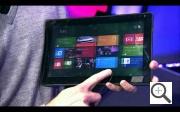
“Support for ARM-based chipsets, touch, and sensors makes Windows 8 work beautifully on your choice of a full spectrum of devices, such as 10-inch slates with all-day battery life, ultra-lightweight laptops, and powerful all-in-ones with 27-inch high-definition screens,” Microsoft contends, in a Windows 8 Guide distributed with Windows Developer Preview
In addition, the ARM edition of Windows 8 includes a new mode dubbed “always on, always connected,” designed to let tablets act like smartphones. Tablets can remain in standby mode without disconnecting from the Internet, and then wake up instantly.
Windows 8 is designed to work seamlessly across both PCs and ARM tablets. Yet until developers get a real start on apps for Microsoft’s still empty Windows Store, it’s tough to tell whether that will be universally true.
2. Touch-centric, Tiles-based User Interface (UI)
Although Windows 8 might look and feel like an entirely new “user experiemce,”, Microsoft is actually layering a new animation-enabled user interface (UI) on top of an only somewhat upgraded Windows 7.
The Windows 8 Start Menu is customizable through a mosaic of tiles, which differ from traditional desktop icons by letting you view live information from Windows 8 Metro style apps without actually accessing the apps.
In demoing the tile-based UI at last week’s Build conference , Microsoft showed how the tile for a Windows 8 weather app is able to display the current temperature in a city – along with projected temperatures for the next two days – without requiring you to open up the app. A tile for Windows Live Mail will show you your latest message, while a tile for a social networking app will show you notifications.
“The [Metro] apps are full-screen. They’re beautiful.They’re designed for touch, but of course, they work great with a mouse and keyboard as well if that’s what you have. We wanted to make it really fast and fluid for you to switch between them,” according to Jensen Harris, lead program manager on the Microsoft Office User Experience..
Windows 8 users are also able to access Windows 7 apps. “Everything that runs on Windows 7 will run on Windows 8,” maintained Steven Sinofsky, president of Microsoft’s Windows and indows Live division, during a keynote at the Build conference. However, in order to access Windows 7 apps, you need to switch to a different built-in UI.
3. Charms
In large part, ‘charms’ is a new implementation of the traditional Windows start bar. Charms can also be used to quickly configure settings for individual apps. On an ordinary non-touch PC, charms are accessed by dragging the mouse to the bottom-left corner of the screen, to the same spot as the old Windows start button. On a tablet, you swipe from the right side of the screen to bring up charms.
Microsoft recently applied for a trademark on charms. The charms sidebar offers five sets of options, supporting both app-specific settings and system settings such as volume and brightness. The options include Start, Search, Share, Devices, and Settings. The Start option returns the user to the home screen. The Devices option presents a list of connected devices. Under the Share option, users can see social network sharing apps.
4. Snap Multi-tasking
‘Snap multitasking” is designed to make it easy to run two apps in Windows 8 side-by-side, to resize them, and to switch between them. On the right-hand side of the screen, you can snap an app into place.
You can make an app smaller or larger by dragging the bar for the app. To switch between apps in Windows 8, you swipe from the left-hand part of the screen.
However, Windows 8 does not allow you to view all of your running apps on a single screen.
5. Windows 8 Control Panel
Beyond revamping the Windows task manager, Microsoft has also redesigned the control panel for Windows 8. New options include Personalize, Users, Wireless, Notifications, General, Privacy, Search, and Share.
As Metro style apps become available, you'll be able to use the Personalize menu to customize the Start menu with tiles for calendar, music, e-mail, Netflix, and much more.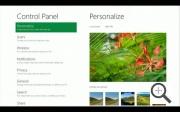
In a demo at Build, Julie Larson-Green, Microsoft's corporate VP of program management for Windows, showed how you’ll be able to position these Metro apps on the screen, and also to combine them into groups such as friends and games.
6. Web Navigation by Touch
The Internet Explorer (IE) 10 browser built into Windows 8 is designed to offer faster browsing through greater hardware acceleration, along with rapid gesture-based zoom, pan, and Web site navigation.
As in other areas of Windows 8, you can quickly access Windows 8 charms, as well as the two keyboards described below.
7. Two Touch Keyboards
Windows 8 also contains two soft keyboards: an “enhanced” traditional keyboard, plus a new thumbs keyboard for non-touch typists.
In efforts by Microsoft to make typing on a virtual keyboard faster and more accurate, the revised edition of the conventional keyboard suggests words on the screen as you type. You can then tap to selected a suggested word. Microsoft also provides a spellcheck-like feature designed to automatically correct mistyped words – although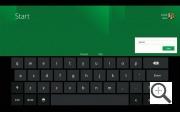 like any other spellchecker, this feature carries the potential to cause its own errors.
The keyboards are also aimed at automatically adjusting to whaever human language you choose for Windows. These language settings will automatically apply to the entire computer, instead of only to specific apps
8. ‘Enhanced Copy Experience’
Windows 8 also introduces the ability to perform all current copy operations into a single dialog box, instead of requiring you to perform file copying in separate dialog boxes for each app.
The new dialog box for file copying lets you pause, resume, and stop each sopy operation currently under way. It will also warn you if you’re beginning to copy one version of a file on top of another.
Microsoft has also added a realtime throughput graph. “Now each copy job shows the speed of data transfer, the transfer rate trend, and how much data is left to transfer. While this is not designed for benchmarking, in many cases it can provide a quick and easy way to assess what is going on for a particular [copy] job,” noted Alex Simons, director of program management with the Windows 8 management team.
9. Native USB 3.0 Support
New USB 3.0 ports operate at speeds up to ten times faster than )SB 2.0. To better support these speeds, Microsoft is outfitting Windows 8 with native USB 3.0 drivers.
Meanwhile, though, USB 3.0 will purportedly continue to work under Windows 7, through the use of third-party drivers.
“By 2015, all new PCs are expected to offer USB 3.0 ports, and over 2 billion new ‘SuperSpeed’ USB devices will be sold in that year alone,” said Dennis Flanagan, director of program management for the Windows 8 Devices and Networking Group, in a blog post. “There are also billions of older USB devices that Windows must remain compatible with.”
10. Better Support for Multiple Monitors
Windows 8 also brings increased support for multiple monitors, The Developers Preview of the new OS includes first-time capabilities for extending the taskbar across two PCs, without any need for third-party apps. You can also stretch wallpaper across two monitors, or display the Start screen on one PC and the desktop on the other, for instance.
It's also easy to switch between multiple monitors. The primary monitor has a start button, and the secondary monitor has a switcher button. Clicking or tapping on the switcher button will swap it out for the start button, allowing you to turn the secondary monitor into the primary one.
-
25-09-2011, 01:50 PM #78Thailand Expat
- Join Date
- Sep 2009
- Last Online
- @
- Posts
- 108,195
And a longer list:
- Faster boot times. The demo showed a system cold boot--in eight seconds.
- Syncable settings on any Windows 8 device.
- Native support for Windows 7 applications.
- Built-in Hyper-V virtualization technology.
- Touch support, including the option to use thumbs to navigate on Windows 8 tablets.
- SkyDrive storage support to work with Windows Live, Hotmail and all other Microsoft cloud services.
- SkyDrive storage support for third-party services including Facebook, Flickr, and LinkedIn.
- Multi-monitor support built in, allowing the Windows 8 new Metro UI to operate on one monitor, while the basic Windows desktop UI shows on another.
- Enhanced security features, including an improved Windows Defender built into the OS. Sinofsky demonstrated how Windows 8 could not and would not boot from a rootkit-infected USB stick.
- Eventual availability of both Win32 apps and Metro apps for Windows 8 via Windows Store.
- Support for non-Intel CPUs by the time it ships commercially. That includes ARM, AMD, NVIDIA, Qualcomm, and Texas Instruments.
- NFC support allowing tap-to-share among users.
- Single-development platform. There is one Windows 8 API on both conventional computers and mobile devices such as tablets.
-
25-09-2011, 06:36 PM #79I'm in Jail
- Join Date
- Mar 2006
- Last Online
- 12-06-2021 @ 11:13 PM
- Posts
- 39,826

-
25-09-2011, 08:53 PM #80Thailand Expat
- Join Date
- Sep 2009
- Last Online
- @
- Posts
- 108,195
I wondered why Butters had gone so quiet... Originally Posted by Butterfly

-
25-09-2011, 10:02 PM #81I'm in Jail
- Join Date
- Mar 2006
- Last Online
- 12-06-2021 @ 11:13 PM
- Posts
- 39,826
have another one harryb, you know you want it
-
25-09-2011, 10:21 PM #82Thailand Expat
- Join Date
- Sep 2009
- Last Online
- @
- Posts
- 108,195
Does that line work on your ladyboy chums, fag boy? Originally Posted by Butterfly
-
26-09-2011, 12:34 AM #83Thailand Expat
- Join Date
- Sep 2009
- Last Online
- @
- Posts
- 108,195
Tweak Windows 8 with the 'Metro UI Tweaker for Windows 8'
By Adrian Kingsley-Hughes | September 25, 2011, 3:39am PDT
Summary: Tweak your Windows 8 Developer preview to look like … well … Windows 7!
Quite a few of you have been asking about apps that allow you to tweak Windows 8. Let me introduce you to my favorite - Metro UI Tweaker for Windows 8.

Note: This application requires the enabling of .NET Framework 3.5.1 on the Windows 8 developer preview as follows:Metro UI Tweaker for Windows 8 gives you access to the following tweaks:
- Fire up Control Panel then click on More Settings and go Programs > Programs and Features > Turn Windows features on or off
- Select .NET Framework 3.5.1 from the listing and click OK
- Windows will connect to Windows Update to download the required files
- When that’s done, you’re good to go!
- Disable Metro Start Menu: Disables only Metro Start Menu Screen. This function requires editing a System File. It does not remove the file.
- Disable Metro Ribbon: Disables only the Metro Ribbon UI. This function I discovered myself. It requires Taking Ownership of a System File. It does not remove this file.
- Disable Metro Start Menu and Ribbon: Disables the Metro Start Menu UI, Ribbon UI, Metro Task Manager UI and the Lock Screen.
- Enable Metro Start Menu and Ribbon: Re-enables all available Metro UI options.
- Add Power Options to the Metro Start Menu Screen: Logoff, Switch User, Lock, Sleep, Restart and Shutdown
- Add any Application/File to the Metro UI Start Menu Screen: Some Applications/Files may not be available to you to add to the Metro Start Menu Screen. This program allows you to add those Applications/Files which would otherwise be unavailable.

Note: Enabling the classic Start Menu did seem to cause a lot of screen flicker during the first login to the desktop.And here’s what happens when you enable the various power options on the Metro UI Start menu:

I’ve tested Metro UI Tweaker for Windows 8 and it seems pretty reliable, but it does make some pretty deep system changes (such as editing system files) so there’s scope for things to go wrong. An up-to-date backup may very well become be your new best friend!
Metro UI Tweaker for Windows 8 will work with both 32-bit and 64-bit versions of Windows 8.

 Reply With Quote


Thread Information
Users Browsing this Thread
There are currently 1 users browsing this thread. (0 members and 1 guests)
