

So you think they'd announce it and come up with a release date but not actually plan to ship it, let alone with Windows 8 running on it?
Pricewise I'm guessing it can't be that hard to match iPad prices, although without the 37% margin.
Results 26 to 50 of 81
Thread: Microsoft Release announcements.
-
14-07-2012, 12:31 PM #26Thailand Expat



- Join Date
- Sep 2009
- Last Online
- @
- Posts
- 108,193
-
14-07-2012, 01:41 PM #27I don't know

- Join Date
- Dec 2005
- Last Online
- @
- Location
- on pacific ocean, south america
- Posts
- 21,406
Harry and Ctulhu
Thanks for your responses. I'm taking your advice.

-
14-07-2012, 02:55 PM #28Thailand Expat
- Join Date
- Sep 2009
- Last Online
- @
- Posts
- 108,193
Actually posted in the wrong thread, but as you can't delete, I'll just do a little dance instead.

-
14-07-2012, 03:42 PM #29Thailand Expat



- Join Date
- Dec 2010
- Last Online
- 03-05-2013 @ 07:59 PM
- Location
- *classified*
- Posts
- 1,800
Microsoft Announces 'Surface' Tablet, No Pricing or Release Date | Macgasm Originally Posted by harrybarracuda

Did Microsoft's Surface announcement fall flat? - Computer Business Review
They didn't announce any sort of release date for Surface - do you have some inside info, here?
The only release date they gave is for Windows 8, which is given as October 8th. This doesn't necessarily mean that Surface will be available then as well. Heck, it doesn't even mean that Windows 8 will be usable at that point.
Considering Microsoft's stuttering "priced similar to other ultrabook and laptops in the markets" statement during the launch, I wouldn't hold my breath for pricing able to compete with iPad's $500/$600/$700 price-points. My guess is that MS pricing will start at $800 and up - without 3G, and far less battery-life. Originally Posted by harrybarracuda
-
14-07-2012, 04:40 PM #30Thailand Expat
- Join Date
- Sep 2009
- Last Online
- @
- Posts
- 108,193
Yes, and I opened the thread with it. Originally Posted by Cthulhu
Tami went on to say that Windows 8 will reach general availability by the end of October! This means that new Windows 8 and Windows RT PCs will be available to buy and upgrades will be available starting in October.Can we stop with the 'No 3G" nonsense. It has full USB ports. It will take any mobile broadband USB device. Including 4G and beyond.Considering Microsoft's stuttering "priced similar to other ultrabook and laptops in the markets" statement during the launch, I wouldn't hold my breath for pricing able to compete with iPad's $500/$600/$700 price-points. My guess is that MS pricing will start at $800 and up - without 3G, and far less battery-life.
-
14-07-2012, 06:04 PM #31Thailand Expat
- Join Date
- Dec 2010
- Last Online
- 03-05-2013 @ 07:59 PM
- Location
- *classified*
- Posts
- 1,800
Dude, are being deliberately obtuse? Your quoted release dates are for Windows 8 and Windows RT *PCs* - there is no mention, nor any indication that this will include Microsoft Surface tablets. In fact, the careful omission of that inclusion is not instilling any trust.
Oh, you're advicating plugging additional dongles in, to gain 3G functionality? Really, after previously condemning Apple that their mobile devices "require adapters and dongles to add functionality"?
So, which is it? Dongles bad, dongles good, or dongles only bad when Apple does them?
In the case of mobile devices, who's strength is to be slick and self-contained, having to stick on add-on plugs is dumb and reduces the value of the device to the potential user, IMO.
-
14-07-2012, 07:02 PM #32Thailand Expat
- Join Date
- Sep 2009
- Last Online
- @
- Posts
- 108,193
I would have thought that you, of all people, would not be banging on about having hardwired mobile broadband capability built into the device after the Australian ipad fuck up. Originally Posted by Cthulhu
And there is a big difference between Apple branded, overpriced crap and your mobile broadband dongle/Mifi device, which normally comes from your broadband service provider, not the tablet manufacturer.
And the best point is that as new comms standards come out, you'll just be able to get a new dongle.
Not HAVE to buy a new ipad.

Oh, and the RT PC IS the Surface Tablet - the ARM version. The Intel version is out in mid-November I'm told. Microsoft are calling them "Tablet PC's".The next post may be brought to you by my little bitch Spamdreth
-
14-07-2012, 09:51 PM #33Thailand Expat
- Join Date
- Dec 2010
- Last Online
- 03-05-2013 @ 07:59 PM
- Location
- *classified*
- Posts
- 1,800
So, you've got nothing, except flailing hands, and shitty "solutions" involving dongles hanging off a tablet. Ok.
-
14-07-2012, 10:02 PM #34Thailand Expat
- Join Date
- Sep 2009
- Last Online
- @
- Posts
- 108,193
Most laptops don't have 3G, so people have dongles and portable hotspots galore already.
As I said, your iPad 4G is useless in Australia because it only supports the hardware built into it.
So people *have* to have a 4G Mifi device to use it on that network anyway.
Get my point yet?
-
15-07-2012, 04:37 AM #35Thailand Expat
- Join Date
- Dec 2010
- Last Online
- 03-05-2013 @ 07:59 PM
- Location
- *classified*
- Posts
- 1,800
The only point I am getting is that you are dangerously close to confirming how little you know, and how you don't bother researching what you bleat on about. Originally Posted by harrybarracuda
Useless? Originally Posted by harrybarracuda
So, you are saying that there is no HSPA+ in Australia, or that all Australian carriers have discontinued all 3G+, 3G, EDGE and GPRS technology as they switch on LTE?
Oh, what's that - they haven't? Really?
The iPad 4G is just as capable of connecting to HSPA+ networks (which works on Telstra and Vodafone, both of which have upgraded to HSPA+ well before their LTE deployment). While entirely dependent on deployment, network traffic, and actual implementation, HSPA+ in numerous instances can provide comparable or faster speed than LTE, as I've found (Thailand's TRUE HSPA+ promises 42Mbps, which is faster than most LTE implementations, by the way).
Lastly, the iPad falls back to regular 3G, EDGE and GPRS, depending on the network, so I consider your claim of it being "useless" to be, once again, just so much FUD and wailing - and relatively pointless. It just makes you look bad, and your position weak.
It works on *that network* just fine in HSPA+ mode. Originally Posted by harrybarracuda
-
15-07-2012, 04:39 AM #36Thailand Expat
- Join Date
- Dec 2010
- Last Online
- 03-05-2013 @ 07:59 PM
- Location
- *classified*
- Posts
- 1,800
Convenience and compact are one of the selling points of tablets - meaning that customers won't stand for having to plug in extra dongles just to have basic functionality. You're desperately reaching - tablets are not laptops, no matter what Microsoft line you parrot. Originally Posted by harrybarracuda
-
15-07-2012, 12:00 PM #37Thailand Expat
- Join Date
- Sep 2009
- Last Online
- @
- Posts
- 108,193
I don't see Microsoft fanantics screaming about the lack of inbuilt 3G on this device. Which ought to tell you something.
Is that from an Apple press release?While entirely dependent on deployment, network traffic, and actual implementation, HSPA+ in numerous instances can provide comparable or faster speed than LTE
Because what happens when 5G comes out?
You're skirting around the point trying to make excuses.
I'm certainly not bothered about it not having 3G built in, I'm more interested in it having full USB ports and USB 3.0 capability.
That puts it well ahead of the iPad, which is why corporates are going to love it.
-
15-07-2012, 12:19 PM #38Thailand Expat
- Join Date
- Dec 2010
- Last Online
- 03-05-2013 @ 07:59 PM
- Location
- *classified*
- Posts
- 1,800
'nuff said. Originally Posted by harrybarracuda
Nice self-goal.
-
15-07-2012, 01:16 PM #39Thailand Expat
- Join Date
- Sep 2009
- Last Online
- @
- Posts
- 108,193
I think the phrase is "non-issue". Except for the scared Apple folk who can see this knocking the bollocks out of their corporate iPad business.
I suppose the proof of the pudding may be when Samsung release the spec for their RT. If they don't include 3G (and let's face it, they have the hardware), then they probably attach the same lack of importance (although in fairness the RT is aimed more at consumers).
-
15-07-2012, 02:04 PM #40Thailand Expat
- Join Date
- Dec 2010
- Last Online
- 03-05-2013 @ 07:59 PM
- Location
- *classified*
- Posts
- 1,800
I guess, we will know, whenever Microsoft releases it -- that is, if they ever provide a release date (and no, they still haven't).
So, if Microsoft were to release a version of Surface with broadband modem support integrated, that would kinda destroy your entire argument, then?
You're right about one thing - it's a non-issue, since they will sell about as well, and to the same customer group, as their Zune and Windows Phone.
-
18-07-2012, 10:06 AM #41Thailand Expat
- Join Date
- Dec 2010
- Last Online
- 03-05-2013 @ 07:59 PM
- Location
- *classified*
- Posts
- 1,800
Enjoy Office 2013 on the Surface...
Why bother? The sad state of Office 2013 touch support | Ars Technica
Why bother? The sad state of Office 2013 touch support
Aurich Lawson
Microsoft Office 2013
First look: PowerPoint 2013
First look: OneNote 2013
First look: Excel 2013
First look: Word 2013
First look: Outlook 2013
With Windows 8, Microsoft has created an operating system that is, at least in part, genuinely usable with nothing more than fingers. While it took the company a long time to recognize that finger-based touch systems were more approachable than stylus-based ones, and that touch-based software needed to be designed to accommodate the imprecision that fingers imply, Microsoft has its finger-based platform at last with the new Metro-style interface and new Metro-style applications. Office 2013, however, isn't a new Metro-style application.
Instead, the suite contains two Metro-style Office apps: a new OneNote client (that will work alongside a regular desktop version) and a Lync client. Everything else is a desktop application, which poses a problem. Office is an important product for Microsoft and makes up a significant part of the Windows 8 sales pitch. Windows RT, the ARM variant of Windows 8 that will be used on the company's Surface tablets, will ship with Word, Excel, PowerPoint, and OneNote, and the presence of these applications will be one of the big things that sets Windows RT apart from the iPad. For these programs to have any value at all, they have to be touch friendly.
Ready to touch
Historically, the Office team never made any concessions to Microsoft's broader tablet ambitions. With the exception of OneNote, the Office apps have never been comfortable for pen users, and it seemed that the Office team was happy with that. That's no longer the case with Office 2013. The suite contains a range of improvements to make finger access better. Across the board, menus created in the main UI are given wider spacing when invoked with fingers. The same is true of the hovering formatting toolbars in Word and Excel; when touching the screen, they're much larger and easier to manipulate.
The sizing of the rest of the UI is controlled by a new "full screen" mode that changes the interface to better accommodate touch input. In theory, the applications will use this mode by default when installed on tablet hardware (though they didn't for me on a mouseless Samsung tablet); otherwise, the applications all have a full screen mode button next to the minimize button.
Enlarge / Above, Outlook 2013's ribbon in touch mode. Below, the ribbon in normal mode.
Hit this button and a few things happen. The ribbon, title bar, and quick access toolbar all disappear, replaced by a strip along the top of the window with a "..." either in the center (for OneNote) or on the right-hand side (for everything else). Tap that strip and the ribbon and status bars reappear. The status bar also disappears and similarly reappears when the "..." strip is touched. Windows 8's standard "swipe from the top of the screen" gesture doesn't bring up the ribbon; I think it would be more consistent if it did.
Word's floating toolbar in touch mode, above, and normal mode, below. The same buttons in the same order, just spaced out a little more.
When the ribbon is displayed in this mode, its spacing is altered to make the targets a little bigger. This is especially apparent on the various menus that can pop up from the ribbon; these are normally quite tightly packed.
As well as these spacing adjustments, the applications now respond to two-finger zooming. This mainly performs a conventional zoom, but in Outlook's calendar view it does a semantic zoom, allowing you to zoom right in to a single day, or all the way out to a month at a time. To this, Word also adds a tap-to-zoom feature when in Read Mode, to allow tables, images, or other objects to be zoomed in a similar fashion to touch-based browsers.
And... that's about it, the full extent of the finger support that Microsoft has added to Office 2013. If it doesn't sound like much, there's a good reason for that: it isn't. For stylus users, the company says that accuracy has been improved, particularly in OneNote, but using the software with fingers is problematic.
Inappropriate touching
First of all, there's all the stuff that's simply not touch enabled. The options screens, for example. While the drop-down lists do pick up the wider spacing when invoked with touch, that's about the only concession they make: tightly packed checkboxes and radio buttons remain the norm.
Enlarge / A few examples, boxed in red, of UI elements that don't work on touchscreens. There are many more than just these.
Even worse are the dialog boxes such as Excel's "Format Cells" or Word's "Paragraph." These don't have any concessions to touch control at all. Want to set up an e-mail account in Outlook? You'll be using the same dialogs as you do in Outlook 2010, in spite of their mouse-and-keyboard design.
Microsoft has even added new features in Office 2013 that are inaccessible to touch users. Outlook 2013's "peek" feature, which allows quick glancing at calendar, contacts, and tasks, is invoked with a mouse hover—something that has no analog for touch users.
These are not touch applications, and you will not want to use them on touch systems. They're designed for mice and they're designed for keyboards, and making the buttons on the ribbon larger does nothing to change that fundamental fact.
The Office 2013 apps also highlight more general flaws with Windows 8's touch support of desktop applications. The on-screen keyboard has two modes; it can either be free-floating above the desktop applications, or it can be docked to the bottom of the screen, which forces applications to resize to fit the remaining area. This latter mode is important for accessing, for example, forms that reach the bottom of a webpage, as the form fields would normally lie behind the keyboard.
Used in this docked mode, I found many visual glitches, particularly in Word. Tapping the "..." button to display the ribbon would dismiss the keyboard, but the status bar would then appear mid-way up the screen, as if it were trying to make room for the (now invisible) keyboard. I'm sure such issues are fixable—PowerPoint does quite a good job of making space for the keyboard and ensuring that the text you're editing is visible—but they point to the generic difficulties that Windows 8 has in trying to retrofit touch accessibility to desktop applications.
Enlarge / The docked on-screen keyboard gets dismissed for some reason, leaving the status bar floating in the middle of the screen.
Controls such as Word's font picker become very awkward, too. This is a drop-down box, so it gets the extra spacing when in touch mode, but it's also editable, so the on-screen keyboard appears whenever you use it. The result is that you can only see a small number of fonts in the list, making the whole thing annoying to use. More generally, you find yourself having to shuffle around the screen, moving the keyboard and dialog boxes around so that the part you want to use is visible.
Enlarge / The combination of wide spacing and the bulky on-screen keyboard means that the font menu is extremely cramped.
Conversely, the on-screen keyboard doesn't appear at all in Excel, whether you tap in a cell or in the formula bar to enter some text; you have to manually bring it up by pressing the keyboard icon on the taskbar.
Using Office 2013 on a touch machine is, at least in the public preview version now available, a tremendously frustrating experience. Even with the auto-hide ribbon, the Office applications are simply too complex to cope well with half their screen being covered up by an on-screen keyboard, and their interfaces are far too big for a simple band-aid such as "make the ribbon spacing a little larger" to be anywhere near adequate.
Things are a little better for stylus users—though we note that the ARM-powered Surface tablet doesn't support stylus input—because a stylus is almost precise enough to manipulate the checkboxes, radio buttons and so on—but the on-screen keyboard problems remain.
Clearly, this is not exposing the full power and complexity of Office 2013 to finger users; too much is still designed around pixel-perfect pointing devices. The Office team appears to be positioning touch support more as a way of enabling simple edits to be made as a kind of fall-back—a stopgap solution for those times when the mouse and keyboard aren't available.
The need for simplicity
As a set of reader applications, the suite works tolerably well. Opening and scrolling through documents works, and because these are the full Office programs, files are displayed with full fidelity and functionality. However, in this context, I find it hard to understand why Microsoft made the effort it has; Even Office 2010 works adequately well for just reading documents on a touch PC.
Unfortunately, as soon as one ventures beyond mere reading, the experience becomes unsatisfactory. Finger users attempting to make edits will find themselves regularly dumped into interfaces simply not designed for imprecise input, and even if they stick to the "main" user interface (the ribbon and pop-up toolbars), that interface works poorly. The interactions with the on-screen keyboard are frustrating and the interface is cluttered, leaving too little of the working area actually visible.
Having the real Office applications and their perfect support for Office documents is valuable—but this needs to be married to simpler interfaces that are engineered around reading and light editing, and that remove entire features and user interfaces that are too complex for finger usage.
As things stand, far from being a valuable feature of Windows RT, the Office 2013 applications threaten to make it worse.
-
18-07-2012, 11:51 AM #42Thailand Expat
- Join Date
- Sep 2009
- Last Online
- @
- Posts
- 108,193
Interesting. A preview that's only been out a day and he's not had a device to try it on, but still feels able to write a critical report.
Appletard by any chance?
I expect to see lots of sniffy bits like yours, since this is what will remove the ipad from the corporate environment.Microsoft Office comes all set for Windows 8 with touch, stylus
Nandagopal Rajan Last Updated: July 17, 2012 | 18:56 IST
 Microsoft CEO Steve Ballmer while unveiling the new Office. PHOTO: Associated Press
 It is MS Office's turn to go touch. Microsoft has unveiled the customer preview of the new Microsoft Office with support for touch, stylus, mouse or keyboard across new Windows devices.
The new Office integrates with social networks and unlocks modern scenarios in reading, note-taking, meetings and communications.
A release quoted CEO Steve Ballmer as saying that the new, modern Office will deliver unparalleled productivity and flexibility for both consumers and business customers.
"It is a cloud service and will fully light-up when paired with Windows 8."
Since the new Office 2013 will run on Windows 8 devices too, it features full integration for touch with pinch and zoom. Plus, support for stylus to create content, take notes and access features.
Users will be able to handwrite email responses and convert them automatically to text, like with other Windows 8 apps. OneNote and Lync will be the first Windows 8 style applications for Office and will come with touch-heavy interfaces.
Cloud support is one of the other new things as Office will now save documents to SkyDrive by default, making them available across devices. Settings and files will also be available across devices once you log in. Office is also available as a subscription service now.
The new Office will also usher in a private social network for businesses, called Yammer, with integration for SharePoint and Microsoft Dynamics. Microsoft had bought Yammer earlier this year.
Users will now be able to follow people, teams, documents and sites in SharePoint. Then there is seamless integration with Skype, which Microsoft acquired recently. Subscribers will get 60 minutes of Skype world minutes every month.
While the full lineup of offerings and pricing plans will be announced in the fall, Ballmer discussed three new Office 365 subscription services. Each new subscription offer will include the new 2013 editions of the Office applications - Word, Excel, PowerPoint, OneNote, Outlook, Publisher and Access.
In addition, subscribers will receive future rights to version upgrades as well as per-use rights across up to five PCs or Macs and mobile devices.
The three new editions will be Office 365 Home Premium with 20 GB of SkyDrive storage and 60 minutes of Skype world minutes per month, Office 365 Small Business Premium with business-grade email, shared calendars, website tools and HD web conferencing and Office 365 ProPlus for enterprise customers with the flexibility to deploy and manage in the cloud.
The customer preview is available at office.com/preview.Last edited by harrybarracuda; 18-07-2012 at 12:08 PM.
-
18-07-2012, 12:10 PM #43Thailand Expat
- Join Date
- Dec 2010
- Last Online
- 03-05-2013 @ 07:59 PM
- Location
- *classified*
- Posts
- 1,800
Interesting, you're fully endorsing and committing to a hardware device that not only hasn't been released, but not allowed to be reviewed, and so far universally panned (except by Windoids, of course). Originally Posted by harrybarracuda
Interesting, indeed.
-
18-07-2012, 12:27 PM #44Ocean Transient

- Join Date
- Apr 2010
- Last Online
- 23-07-2024 @ 03:25 AM
- Location
- Untied from dock. Heading South Down West Coast of Canada.
- Posts
- 3,631
SO is this new WIndow 8 the same as what Mac has been doing for the last couple of decades?
I suppose whenever Windows come out with a new model it means more employment for the PC Techies. Bit like when BL made cars their was a greater need for mechanics and parts manufactures.
If I was tech savi I'd go for one of the cheaper machines. But alas the women has spoken.
-
18-07-2012, 12:44 PM #45Thailand Expat
- Join Date
- Dec 2010
- Last Online
- 03-05-2013 @ 07:59 PM
- Location
- *classified*
- Posts
- 1,800
Not sure if that's a good comparison, as Windows is usually 4-5 years behind the curve -- but early usability reviews have shown Windows 8 to be more or less unusable. Originally Posted by Sailing into trouble
The original "Dad Test" - skip forward to 4 minutes 10 seconds for the payoff!
Subsequently other have done the same, more "Dad Tests":
These are all people who are hard-core prior Windows XP or Windows 7 users. Worth watching what a wonderful job Microsoft has done.
-
18-07-2012, 12:49 PM #46Thailand Expat
- Join Date
- Sep 2009
- Last Online
- @
- Posts
- 108,193
You have to question the wisdom or loyalty of fuckwits who universally pan something they've never even seen. Originally Posted by Cthulhu
But this is what frantic appletards do. I'm used to it. I'm going to d/l the Office Preview now on the Win 8 preview and have a look. I'll report back.
-
18-07-2012, 12:52 PM #47Thailand Expat
- Join Date
- Sep 2009
- Last Online
- @
- Posts
- 108,193
It's nothing like the Mac. If you want to see what it looks look, take a look at Windows Phone 7.5. Application Tiles instead of icons, very touch friendly. Originally Posted by Sailing into trouble
But I have to say for the consumer market it's a bit, well, boring really. But it will run Windows apps and if it runs Office then I have a place for it as does almost any organisation that runs Windows and Office.
In fact if you are new to Smartphones and don't want lots of bells and whistles (i.e. phone calls, SMS, emails, Browsing), I'd recommend WP7/WP8 any time, it is incredibly easy to use.
-
18-07-2012, 12:56 PM #48Thailand Expat
- Join Date
- Sep 2009
- Last Online
- @
- Posts
- 108,193
The Dad videos are quite funny. But even I won't be using Metro on the desktop, but on the second monitor.
It's aimed at mobile devices, but will be useful to have as an extra on the desktop.
-
18-07-2012, 01:16 PM #49Thailand Expat
- Join Date
- Dec 2010
- Last Online
- 03-05-2013 @ 07:59 PM
- Location
- *classified*
- Posts
- 1,800
.... or the loyalty of fuckwits who will fanatically embrace something that not only haven't they seen, but that Microsoft refused to let anyone use at their "launch", won;t reveal pricing or release dates, and the only reason the fuckwit wants it, is to "get back" at Apple. Originally Posted by harrybarracuda
-
18-07-2012, 01:21 PM #50Thailand Expat
- Join Date
- Sep 2009
- Last Online
- @
- Posts
- 108,193
Microsoft Office 2013 Preview: Hands On
By Michael Brown, Tony Bradley, PCWorld
Storyline: Microsoft Office 2013 Announced

Microsoft Unveils Office 2013: Ready for Tablets, Web

Microsoft Word 2013: Hands On
Microsoft Outlook 2013: Hands On
Office 2013: What We Still Don't Know
Office 2013 is touchscreen ready, cloud friendly, and adds bold new twists to the Microsoft Office franchise. On Monday Microsoft CEO Steve Ballmer outlined what he said was the "biggest most ambitious Office" update to date.
For the desktop Office 2013 delivers a host of smart updates to Word, Outlook, and Excel. But where Office 2013 shines is embracing the mobile world and the cloud with deep integration with Microsoft’s cloud service SkyDrive and collaboration - integrating its recent acquisitions Skype and Yammer. Windows 8, and the upcoming release of Microsoft Surface tablets and Windows Phone 8 smartphones, also play a huge roles in coloring Office 2013 with new features.
Ahead of Microsoft's big news Monday Microsoft provided PCWorld with two Windows 8 tablets (no, not the Surface) and access to the customer preview versions of both Office 2013 and the cloud-based Office 365.
Here is a look at how the software suite runs on laptop, desktop touchscreen, and tablet platforms.
In this story, PCWorld Senior Editor Michael Brown first gives his impressions of working with Office 2013 and 365 on a laptop and a desktop PC. Contributing editor Tony Bradley then writes about his tests of the new products on a tablet PC.
Office 2013, Office 365 on a Laptop and a Desktop PC
I spent most of my time with Word and Excel on a laptop and on a desktop all-in-one equipped with a touchscreen. As expected, Microsoft is tying Office 2013 and Office 365 tightly to its SkyDrive cloud-storage service.
You're free to use other services, but I suspect that this integration will lure plenty of Office users away from their paid accounts on Google, Dropbox, and SugarSync. If you buy a version of Microsoft's new software and sign up for a Microsoft Live account, you'll get 20GB of free storage in SkyDrive.
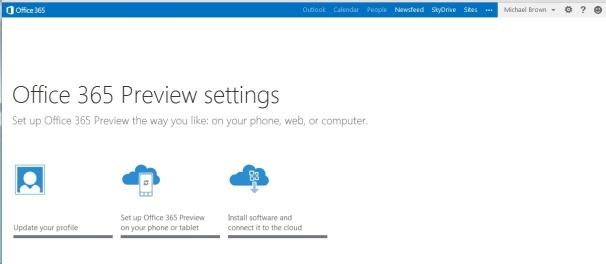 The Ofiice 365 Preview settings screen.
Both Office 2013 and Office 365 offer largely the same user experience, but Microsoft is clearly steering its customers toward the cloud-based version. The company is also marketing Office 365 to consumers for the first time, rather than strictly to businesses.
Purchase the traditional boxed copy of the software, and you get a license to install the software on one device. You can also use Office 365 on any computer or tablet, but that won't be very useful if you find yourself somewhere without your usual computer and without Internet access.
Buy a subscription to Office 365, and you get licenses to download and install Office 2013 on up to five devices (right now, the list of compatible devices is limited to PCs and tablets running Windows 7 or Windows 8, though Microsoft says Office 2013 for Mac will be available by the time the final software is released).
And, as with the boxed copy, you can stream Office 2013 to any PC or tablet running Windows 7 or Windows 8. Microsoft has not yet announced pricing for either product.
The New User Interface
The Office 2013 user interface isn't markedly different from the one in Office 2010: The ribbon remains front and center, though the text and the icons inside it are a bit larger and are spaced farther apart. These changes take better advantage of large monitors and touchscreen displays. Nevertheless, the ribbon isn't too big for an average laptop display, even with the addition of two new tabs: Design and Developer (actually, the Developer tab is present in Office 2010, but it's hidden by default).
 If you're familiar with the ribbon user interface from Office 2007 and Office 2010, you’ll feel right at home with Word 2013.
Though I've used a number of all-in-one computers with touchscreens over the past few years, I don't use the touch interface very often. Perhaps I'm just a creature of habit, but it doesn't feel natural to take my fingers off the mouse to stab them at icons on the screen (or maybe my fingers are just too fat to be accurate). In any event, though I tried hard to use the ribbon with my finger, I kept returning to the mouse. The UI delivers more benefits on tablet platforms, but it doesn't feel any less natural when used with a mouse.
New and Cool Word Features
Microsoft has made a number of cool, interesting, and very useful improvements to Word 2013.

 The Embed PDF feature in Word.On the usefulness front, you can now import a PDF directly into Word, edit it as a Word doc, and then save it as either a Word doc or a PDF. Not only do imported files retain all of the original documents' formatting--including headers, columns, and footnotes--but elements such as tables and graphics can be edited in Word as such.
Import a PDF file containing a table, for example, and you can edit the table just as though you had created it in Word from scratch. You can also embed a PDF file in a Word doc.
 Microsoft expects that people will want to save all of their files to the cloud. Your SkyDrive account is listed first, then Another cool feature is the ability to connect to online resources and bring them inside your documents. For example, you can use Bing to search the Web for videos, without leaving Word, and then embed the HTML code for that video in your document.
Link your SkyDrive account to your Flickr account, and you can jump to your online photo collection and embed photos directly in the document--again, without ever leaving Word.
Embedding a screenshot from an app running on your PC is even easier: Click Insert > Screenshot, and a window with thumbnails of every window open on your desktop will become visible. Click the image you want, and it will appear wherever your cursor is.
When you embed an image or a video in a document, you can grab that element and move it around the document and watch as your text automatically reflows around it in real time.
Word Collaboration Features
When you're collaborating with other people on a document, being able to track the changes that each person makes is critical. This becomes much easier to do in Word 2013, thanks to a new feature called simple markup view.
A red vertical line in the left margin indicates that changes have been made to the document, while a word balloon in the right margin indicates the presence of a comment. Click on the vertical line to reveal both the edit changes and the comments; click on the word balloon to show just the comments.
 Microsoft has also added a new viewing mode, called Reader. When you view a document in this mode, each paragraph has a small triangle in front of it. Click the triangle after you've finished reading its associated paragraph, and the paragraph will collapse so that more text will appear, without your having to scroll to another page.
I haven't had time to explore every new feature of Word 2013, but I like what I've seen so far. It looks as though Microsoft has significantly improved the application, adding some great new features without mucking anything else up in the process. Nevertheless, my opinion at this stage is based on very limited time with the product.
Excel 2013
Like the new version of Word, Excel 2013 feels fresh yet comfortingly familiar. Microsoft has added several new whiz-bang data-analysis tools, including one called Flash Fill. When you take an element of data that you've already entered in one column and enter it in a second column, Flash Fill will predict that you intend to do that for every value in the second column, and will offer to fill in the second column for you accordingly.
 Excel's Flash Fill feature will notice patterns in your data entry, predict what you intend to do next, and then offer to fill in the rest of the data for you.
Microsoft provided a sample two-column spreadsheet to demonstrate how this feature works. The first column contained email addresses in which each person's address was formatted as first-name.last-name@domain-name. The second column was to be used to store each person's first name.
Though that isn't the most realistic scenario imaginable, it works. You establish the reference example by typing the first name of the first person in the email address column; then, as you begin typing the second person's first name, Excel predicts that you want to do the same for every other value in the first column and offers to do just that automatically. Press the Enter key, and the second column automatically fills with first names.
Colors and symbols can help you analyze data more quickly, and Excel 2013's new Quick Analysis tool uses these elements to identify and highlight trends and changes. Select the rows and columns that you wish to have analyzed, click the icon that appears in the bottom right corner, and choose the conditional formatting that suits your needs. Instead of looking at rows and columns of gray numbers, you'll instantly see a spreadsheet formatted with color scales, bars, and icons.
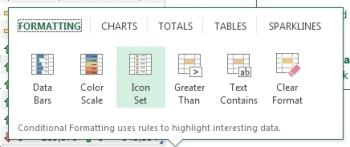 Excel’s Quick Analysis tool automatically suggests conditional formatting that will help you visualize data locked in your spreadsheets.Charts and graphs provide another easy way to visualize data, and spreadsheet software has long permitted users to generate charts and graphs based on the data they enter into its rows and columns.
Excel 2013's new Quick Analysis tool will automatically suggest the most appropriate types of graphs--bar, pie, scatter, and so on--based on the data set that you select.
My early impressions of Excel 2013 are about as favorable as my corresponding impressions of Word 2013. Microsoft seems to have introduced some solid new features without imposing a difficult learning curve. Take that, ribbon haters.
We'll take a closer look at Outlook, Powerpoint, OneNote, and the rest of the suite soon.
--PCWorld Senior Editor Michael Brown
Office 2013 and Office 365 on a Tablet: First impressions
 Microsoft is betting heavily on the idea that tablets are the future of PCs. Like Windows 8, Office 15 was built from the ground up to take advantage of a tablet's unique features, while at the same time addressing the limitations of the touchscreen interface for creating content.
I ran Office 13 through its paces on a Samsung Series 7 Slate PC running Windows 8 Consumer Preview to see how well it performs on a tablet. Bear in mind that this tablet runs Windows 8 Pro, not Windows 8 RT, and that Office 2013 and Office 365 differ from the Office for RT apps that will be available on ARM-based Windows 8 tablets.
Microsoft has done a great job of making the tools and functions of the various Office applications accessible from a touchscreen interface without lessening the capabilities. For example, holding your finger on a misspelled word will pull up Office's list of possible corrections; and holding your finger on virtually anything brings up the options you'd normally find by right-clicking a mouse.
 Microsoft did a nice job of fitting all of Word's functions into the screen space of a tablet.I did sometimes find that the options on the ribbon interface were hard to tap. The buttons are a bit small for my fingers, and you can't pinch-to-zoom to enlarge the ribbon in Office 2013. On the other hand, you can make the ribbon bar disappear to maximize the area available for your document--in both Office 2013 and Office 365--which is nice.
The Office 2013 suite I installed on the tablet included Word, Excel, PowerPoint, OneNote, Outlook, Publisher, Access, Lync, and a couple of bit players. The only apps available within Office 365, however, are Word, Excel, PowerPoint, and OneNote. Outlook exists in Office 365 as well, but the option was grayed out on the software I worked with.
One thing that I like about working with Office on the tablet is more a function of Windows 8 and/or the hardware its running on than of Office itself. The touchscreen virtual keyboard is sensitive and fluid enough to allow me to type at very nearly full speed. Also, tapping the symbols and numbers button brings up an actual number pad, which is much more efficient for entering figures in an Excel spreadsheet.
That said, it was a little annoying to have to tap the keyboard icon at the bottom of the display to open the virtual keyboard. It would have been nice if Office applications had recognized when I tapped on a text field, and responded by automatically opening the virtual keyboard. Perhaps, though, Microsoft wanted to respect the limited screen real estate of the tablet and let users navigate documents without having the keyboard pop up all the time.
Overall, the experience is solid. Using it differs from using a mouse and keyboard with a traditional PC, but it's a functional arrangement. Microsoft has obviously invested a lot of thought and effort in ensuring that the tablet experience that Office offers is worthy of the Microsoft Office name.
--PCWorld Contributing Editor Tony Bradley

 Reply With Quote
 [/SIGPIC]


Thread Information
Users Browsing this Thread
There are currently 1 users browsing this thread. (0 members and 1 guests)
